The Community section (or the Forum as we like to call it) is a space for all your students' questions and practice exercises, as well as the topics for discussion posted by both you and your students. This is where most of the interactive experience takes place, which is why all activity is public and visible for all the students in your course. Below you will find a guide on how to manage this feature for optimal results:
First contact
In the menu on the left-hand side, you can choose from two options for how you want to organize information in this section:
-
In ➡️ Forum mode, where activity is grouped by practice exercise.
- In ➡️ Activity mode, where activity appears in chronological order (you can see likes, comments, conversations, and completed units).

Reply in the forum
To interact in the forum, you can reply to a post, leave a “❤️ Like,” start a new topic, and tag one or multiple students.
Remember, when you reply to a post, the person who made it will receive a notification (via email and under the bell 🔔 notifications icon on their interface). Replies are collapsed under the main comment and can be displayed by clicking on them.
Encourage your students to use the forum's search feature to look for answers to their questions before asking, as the topic may have already been discussed and resolved. Motivate them to help one another to foster a self-sufficient learning environment and a community that doesn't rely solely on your answers.
Reply to multiple students
If you would like to interact with multiple students at the same time, scroll to the bottom of the practice exercise until you find the grey text box and tag them using the @ symbol followed by their username (ex: @username).
Filters
If you would like to see the most recent post, click on ➡️ Go to the last comment.
You can choose how you want to view posts inside each topic, either by publication date or by interaction:
➡️ Add a topic
By adding a new topic, you can propose complementary exercises in the forum and motivate your students to make progress on their projects. You can also share relevant materials or interesting topics.
Every time you add a new topic in the forum, an automatic message will be sent to all of your students. Therefore, it's important to limit yourself to one topic a week so students don't feel like they're being spammed.
In addition to sending an email notification to your current students, topics you create remain permanently in your course forum for any new students that join.
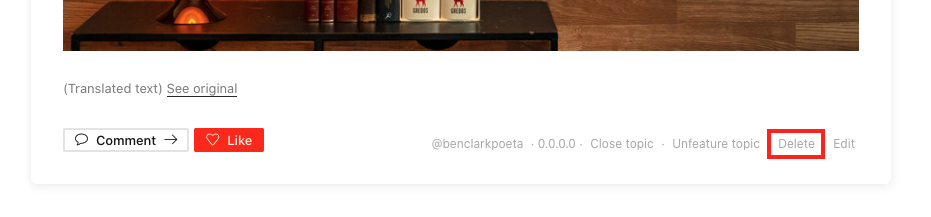
➡️ Delete a topic
If a student adds a topic for discussion that already exists, you can direct them to the appropriate thread by sharing a link to it and invite them to discuss it there. Once you've done this, you can delete the topic to avoid misunderstandings, duplicate content, and excessive topics in your forum.
➡️ Close a topic
This feature enables you to create a topic where interactions from other users are disabled.